How to Use Naver Map in English: A Local's Guide for Korea (2026)
Last updated: November 27, 2026
Quick answer: Download NAVER Map, switch the language to English (in the app's settings on Android, or under your iPhone's Settings → NAVER Map → Preferred Language), and use it for walking and transit directions. It shows subway exit numbers, bus numbers and real-time arrivals, which is exactly what Google Maps has struggled with in Korea.

Why Google Maps isn't enough in Korea (yet)
If you've opened Google Maps in Seoul and gotten a dotted line instead of turn-by-turn walking directions, you're not imagining it. For years Korea didn't allow Google to take its detailed map data out of the country, so Google could show transit routes but not full walking or driving navigation.
That changed on paper in February 2026, when the government conditionally approved Google's request to export high-precision map data. Google has said full navigation is coming, but these things roll out gradually. Until it's working on your phone, the apps Koreans actually use — NAVER Map and KakaoMap — are the safer bet.
Local insight: Koreans almost never say "use Google Maps." Ask anyone for directions and they'll open NAVER Map without thinking. Shops, restaurants and even hospitals keep their NAVER listings up to date because that's where customers look, so opening hours and phone numbers there are usually more current than anywhere else.
Step 1: Switch NAVER Map to English
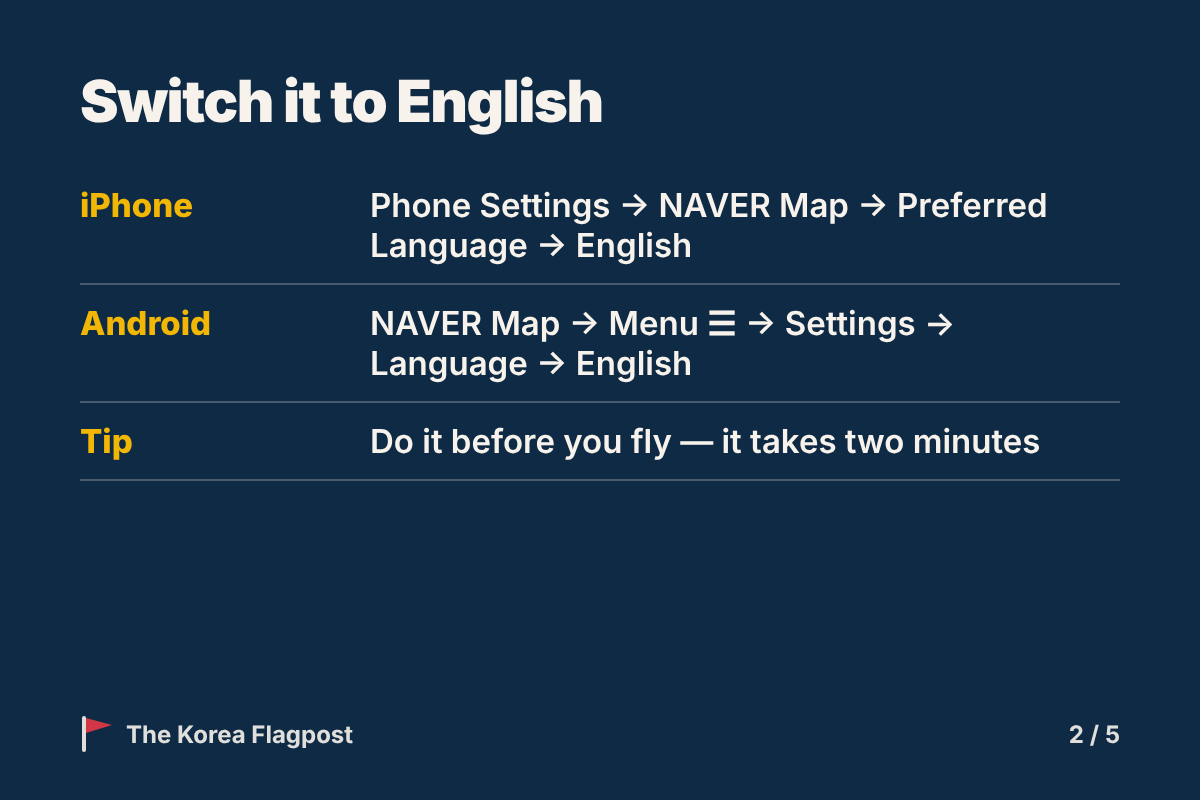
NAVER Map supports English, Korean, Japanese and Chinese. The app follows your phone's language by default, but you can set it directly:
- iPhone: open your phone's Settings → scroll to NAVER Map → Preferred Language → English. Reopen the app.
- Android: open NAVER Map → tap the menu (☰) → Settings (설정) → Language (언어) → English.
Do this before you fly. It takes two minutes at home and saves you from squinting at Korean menus on a cold street corner.
Step 2: Search like a local
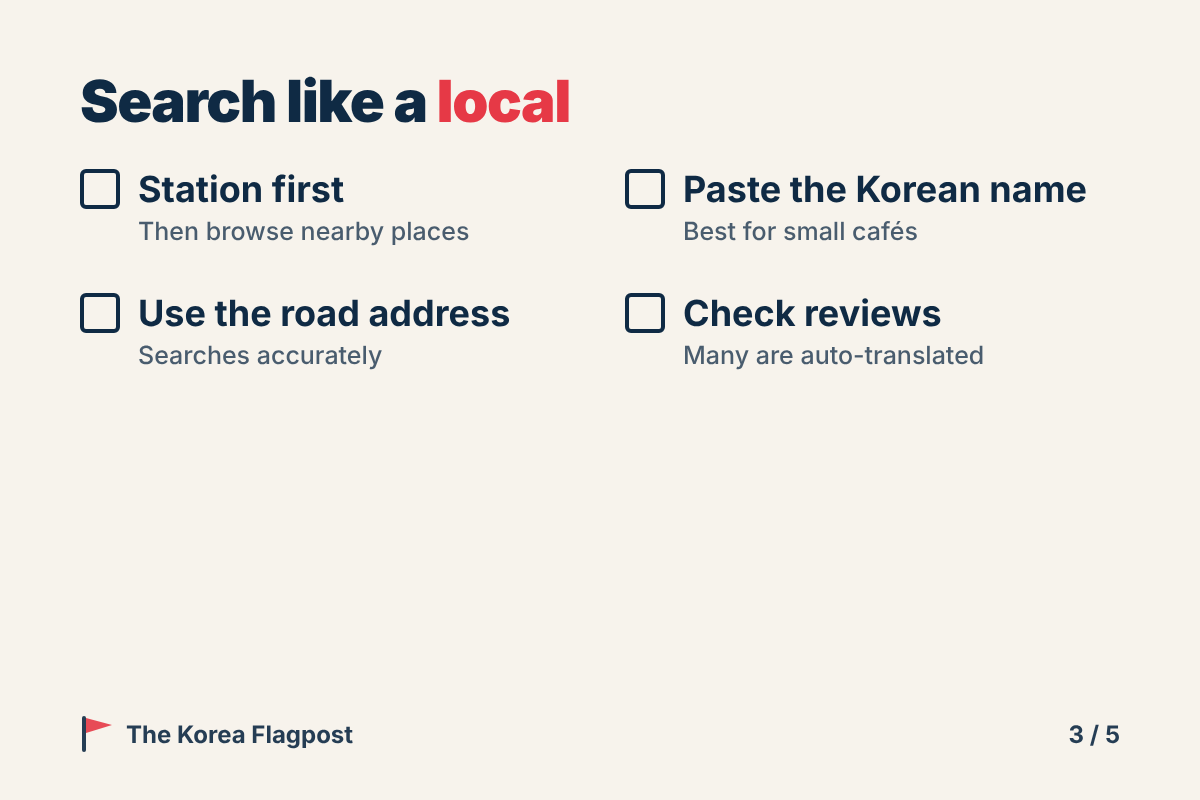
English search works well for big landmarks, hotels and subway stations. Small restaurants and cafés are trickier, because many only list a Korean name. A few habits make a big difference:
- Search the subway station first. "Myeongdong Station" or "Hongik Univ. Station" always works, and from there you can browse nearby places on the map.
- Paste the Korean name. If a friend, a hotel or an Instagram post gives you the name in Hangul, copy it straight into the search bar. It's the most reliable way to find a small place.
- Use the address. Korean road addresses (like "Sejong-daero 110") search accurately, even in English.
- Check the photos and reviews. NAVER now translates many visitor reviews into English, which helps you confirm you've found the right spot.
Step 3: Get directions that actually work
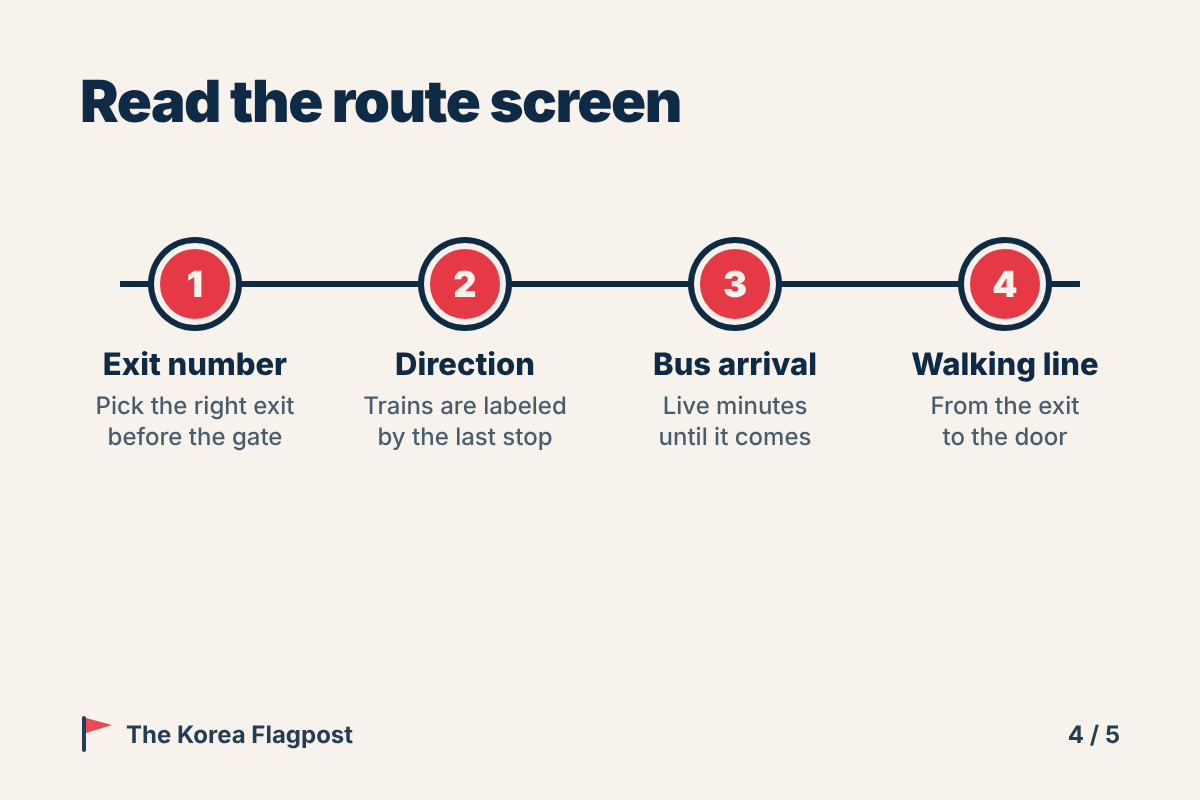
Tap your destination, then Directions. Pick the bus/subway icon for public transit or the walking icon for short trips. Here's what to look for on the route screen:
- The exit number. Big stations have a dozen exits or more, and the wrong one can add ten minutes of walking. NAVER tells you which exit to use — look for it before you tap your card at the gate.
- The train direction. Lines are labeled by their final stop, so note the end-of-line station name shown on the route.
- Bus numbers and arrival times. Real-time arrivals show how many minutes away the next bus is, and the stop name is shown in English.
- Walking segments. The blue walking line guides you from the exit to the door, which is the part Google Maps has historically skipped.
For example, if you're heading to Myeongdong's shopping streets, NAVER will usually route you to a specific exit of Myeongdong Station on Line 4 rather than leaving you to guess.
📍 Google Maps · Naver Map
NAVER Map vs. KakaoMap vs. Google Maps
| Feature | NAVER Map | KakaoMap | Google Maps |
|---|---|---|---|
| English interface | Yes | Limited | Yes |
| Walking directions in Korea | Yes | Yes | Coming (rolling out) |
| Subway exit numbers | Yes | Yes | Partial |
| Up-to-date local listings | Excellent | Very good | Good for big places |
| Best for | Everyday navigation | Backup, taxi users | Saving trip plans from home |
A simple setup that works: plan and save places in Google Maps before your trip, then use NAVER Map on the ground to actually get there.
Common problems (and quick fixes)
The app switched back to Korean. This usually happens after an app update or when your phone's language is set to something NAVER doesn't support. Set English directly in the app (or under NAVER Map in your iPhone settings) rather than relying on the phone's system language.
"No results" for a restaurant you know exists. Try the Korean name, the street address, or search the nearest subway station and zoom in. Many small places are listed under a Korean name only, and a slightly different English spelling (Gyeongbokgung vs. Kyungbokgung) can throw off the search.
The blue dot is jumping around. Tall buildings in areas like Gangnam and Jongno confuse GPS. Walk to an open intersection for a few seconds, or use the subway exit number on the route as your anchor point instead of the dot.
The route looks strange late at night. Seoul's subway stops running around midnight, so late routes may switch to night buses (they start with "N"). If the trip looks long, compare it with a taxi before you commit.
Your data is slow underground. Load the route while you still have signal at the station entrance. Directions stay on screen even if the connection drops on the platform.
Quick checklist before your trip
- Install NAVER Map and set the language to English.
- Search your hotel and save it so you can always find your way back.
- Look up the nearest subway station and exit to your hotel.
- Screenshot the Korean name and address of your hotel in case your phone dies — any taxi driver can take you there from that.
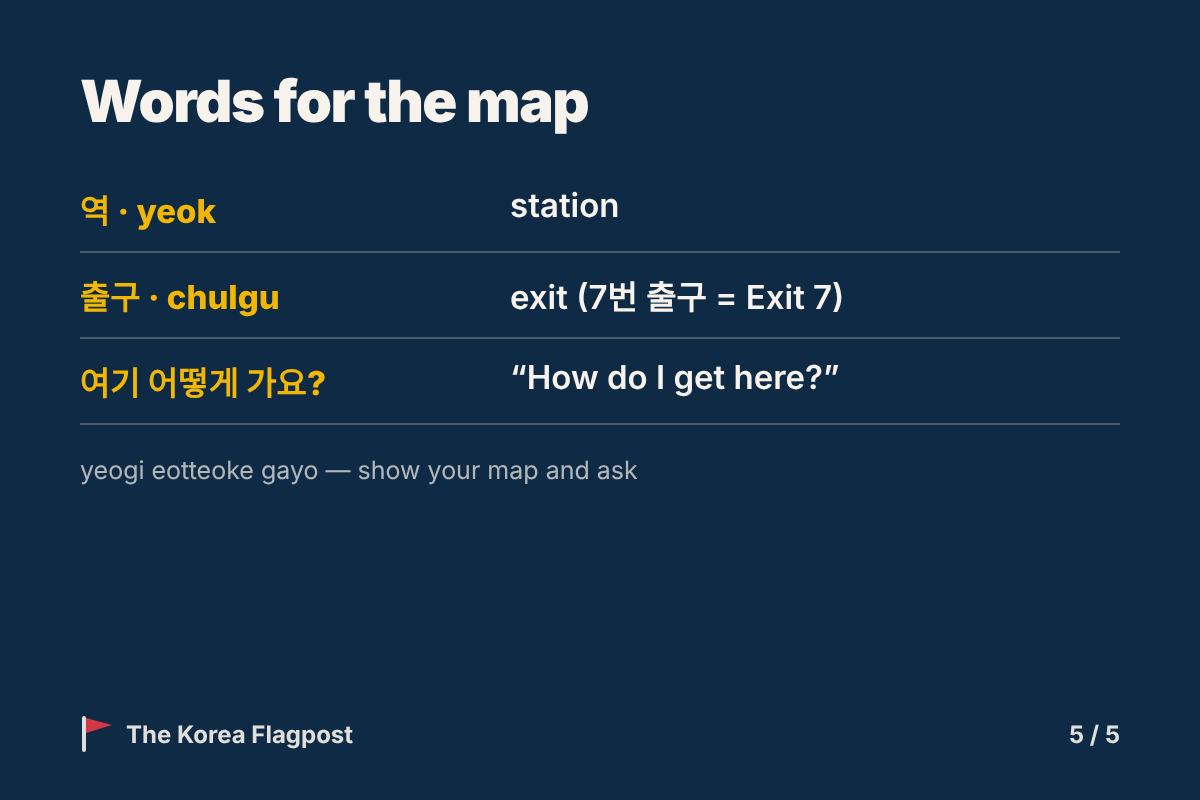
Three Korean words that help on the map
- 역 (yeok) — station. 명동역 = Myeongdong Station.
- 출구 (chulgu) — exit. 7번 출구 = Exit 7.
- 여기 어떻게 가요? (yeogi eotteoke gayo?) — "How do I get here?" Show someone your map screen and say this; most people will happily point the way.
FAQ
Is NAVER Map free?
Yes. The app is free to download and use; you only need mobile data or Wi-Fi.
Do I need a NAVER account?
Not for searching or directions. An account is only useful if you want to save places across devices.
Does Google Maps work in Korea now?
Partly. Transit directions and place listings work, and Korea approved Google's map-data request in February 2026, but full walking and driving navigation is still being rolled out. Keep NAVER Map installed as your main navigator for now.
Sources: NAVER press release on multilingual Maps features, NAVER Map on the App Store, and reporting on the February 2026 map-data decision by The Korea Times. App menus change from time to time, so the exact button names may differ slightly on your phone.


Comments
Post a Comment